
I know how frustrating it feels when your computer slows to a crawl or seems frozen. I wrote this guide to help you quickly identify the main causes and get your device back to normal.
High CPU usage often comes from background programs, outdated drivers, or malware that drains system resources. I’ll walk you through clear steps to check the task manager, update drivers, and tighten security settings without expensive trials or guesswork.
What actually worked for me when my CPU stayed at 100%
I’ve dealt with this issue more than once, and I remember thinking my computer was “dying” when it kept running at 100% even with nothing open. In one situation, I spent time closing apps without success, until I noticed a background service constantly restarting in Task Manager. After checking it properly and updating a driver, the usage dropped back to normal. That experience showed me that high CPU usage is usually caused by something specific—not the whole system failing. In my opinion, the biggest mistake is trying random fixes too quickly. What helped me most was taking a step-by-step approach: checking Task Manager, updating drivers, and only then considering deeper actions like scans or resets. If I can suggest one practical habit, it’s to always identify the exact process first before making changes. It saves time, avoids unnecessary risks, and makes troubleshooting much more effective in the long run.
Whether the problem is a rogue app, a bad update, or an antivirus conflict, you can follow the tips here to restore steady performance. My goal is to make each step simple and practical so you can solve the issue with confidence and save time.
Key Takeaways
- I’ll show how to spot resource hogs and reduce unnecessary processes.
- Updating drivers and system components often fixes stability problems.
- Security checks help rule out malware and antivirus conflicts.
- Task Manager and simple settings changes can restore smooth performance.
- You can avoid costly repair trials by following targeted steps first.
Understanding CPU Performance and System Health
I start by explaining what the processor does so you can spot real problems fast.
The central processing unit is the brain of your computer. It runs programs, handles tasks, and directs hardware. Knowing this helps you see why some apps raise processor demand.
What is a CPU
The processor executes instructions and coordinates software with hardware. Heavy apps like video editors or games make it work harder. Background services and outdated drivers can also raise load even when you think the device is idle.
Normal Usage Levels
For light tasks such as word processing, normal processor levels sit around 10%–30%. Short spikes are fine during complex jobs. Constant high readings at idle signal a system issue.
- Common causes: outdated driver, background software, malware, or security settings.
- When to act: steady high numbers at rest or slow performance over time.
| Activity | Expected Range | When to Investigate |
|---|---|---|
| Idle / Desktop | 5%–20% | Above 30% persistently |
| Web browsing / Office | 10%–40% | Continuous spikes with light pages |
| Gaming / Editing | 40%–90% | Long high levels after app close |
How to Fix 100% CPU Usage Windows Issues via Task Manager
A few clicks in Task Manager will reveal the process that’s making your machine slow.
Open Task Manager by pressing Ctrl + Shift + Esc. This brings up a clear view of running programs and services on your computer.
Next, click the CPU column to sort tasks by their impact. The top entries show which apps or services are causing high cpu usage right now.
- Identify the process causing cpu 100 by checking the sorted list.
- If a noncritical app is hogging resources, you can click end task to stop it and free system resources immediately.
- I recommend you research any unfamiliar process before you click end to avoid closing important system tasks.
- Monitor the cpu column regularly to spot trends and prevent future spikes without a trial of third-party software.
Using the Task Manager is a fast, built-in method to address a high cpu issue. It helps you save time and avoid unnecessary software installs while keeping your device running smoothly.
Managing Background Applications and Startup Processes
Background apps often run unseen and can slowly drain your computer’s responsiveness. I recommend checking which programs launch and run at all times. That quick check often prevents a long troubleshooting cycle and saves time.
Closing Unused Apps
I open the Task Manager and sort by the cpu column to find top consumers. Many background applications can eat system resources, so I research unfamiliar entries before I act.
If a program is a clear cause high cpu or is not needed, I select it and click end task to stop it. This immediate action often restores normal performance without extra software or a paid trial.
I also watch for security software or malware that may run oddly and, if I spot suspicious behavior, I follow up with a scan.
Disabling Startup Items
Next, I review the startup tab in the manager to limit programs that launch on boot. Disabling unnecessary entries keeps the device lean and reduces repeated cpu spikes.
I avoid disabling drivers or essential services. Instead, I turn off third-party apps and trial tools that I do not use. Regular checks of startup settings are one of my best tips for steady performance and fewer surprises.
Updating Drivers and System Software
Keeping drivers and system apps current prevents many slowdowns and odd behavior.
Outdated drivers are a frequent cause of high cpu usage.
I make sure system software stays updated to avoid repeated performance problems. A simple first step is to open Settings and enable App updates in the Microsoft Store so store apps update automatically.

- Use built-in updates for apps and core system components to keep compatibility and lower cpu usage.
- For complex hardware, tools like Avast Driver Updater can install driver updates for printers, graphics, and peripherals automatically.
- If you try a trial driver tool, verify its reputation before allowing it to change system files.
Keeping drivers current gives your device the best resources to handle heavy tasks without extra heat or background processes. I check for driver updates regularly as part of routine maintenance and after any unexplained slowdown or malware scan.
Adjusting Power Settings for Better Resource Management
Tweaking power options can help your system run smoother without extra software.
I often change power settings when a computer shows long periods of high cpu usage or starts to overheat. This is a quick, built-in way to manage resources while I track down the root problem.
Modifying Processor State
Open your power plan and go to the advanced power settings. Then find Processor power management and the Maximum processor state value.
I set the maximum processor state to 90%. That cap reduces spikes that lead to a high cpu or system freeze. It is a temporary measure that buys you time for deeper troubleshooting.
“Limiting peak performance can prevent overheating and keep apps responsive.”
- No trial software required — this feature is part of the operating system.
- Use this while you update drivers, run scans for malware or review Task Manager for troublemakers.
- Proper power management helps your device focus resources on active tasks and saves energy.
Disabling Unnecessary Windows Features
Some native features send and receive files in the background, and they can eat processor cycles without notice. I check a few key settings to stop that silent drain.
Disabling Delivery Optimization
Delivery Optimization can share updates with other devices on your network. This peer-to-peer behavior may cause high cpu usage on machines that are doing uploads.
To turn it off, open Update settings, choose Advanced options, then select Delivery Optimization. Finally, toggle allow downloads from other PCs to the off position.
“Stopping P2P uploads frees resources and reduces background traffic.”
Turning Off Notifications
Notifications also run background tasks that eat cpu and bandwidth. I go to System settings and turn off nonessential alerts.
- Disable app notifications you don’t need.
- Use Focus Assist for quiet hours to limit interruptions.
- No trial software needed — these are built-in settings you can change in minutes.
Scanning for Malware and Security Threats
Malware often hides in plain sight and can silently drain system resources.
I’ve seen many cases where malicious programs are the main cause of high cpu usage. They run background tasks that eat cpu power for unauthorized activity. A thorough scan is a top priority.
Make sure you run a full scan with a reputable antivirus suite. Many trusted products offer a free trial of real-time protection so you can test their detection without commitment.
If the problem persists, open the Task Manager and click cpu column to spot any suspicious process that might be the cause high cpu. Research unknown entries before ending tasks.
- Run a full malware and spyware scan with updated signatures.
- Use a trusted security suite and enable real-time protection.
- Keep antivirus software updated to catch new viruses that can drive cpu usage up.
“Scanning for malware is a critical step in resolving persistent performance issues.”
Resetting the WMI Provider Host
A single system host can cause steady processor drain even when no apps are open.
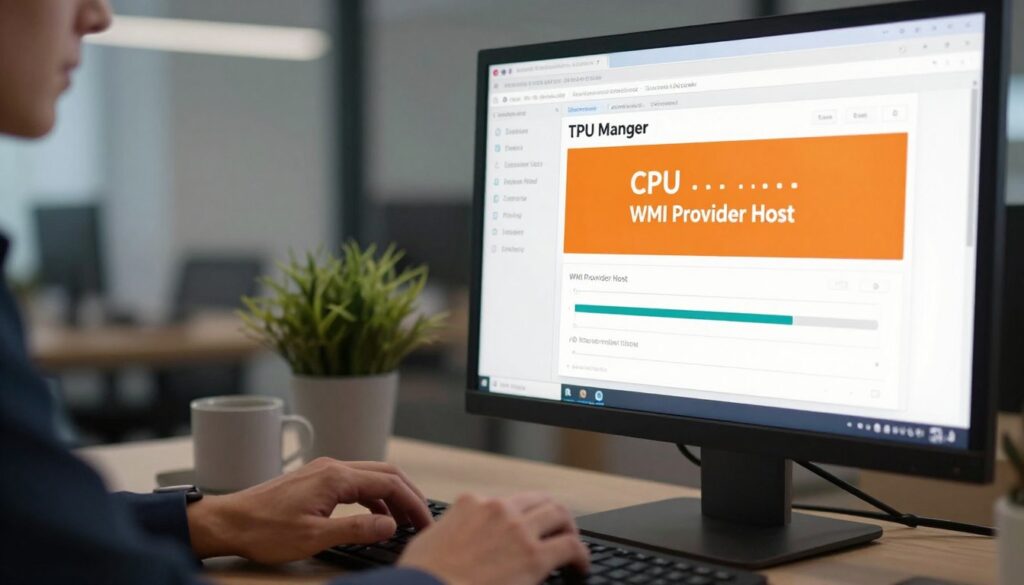
The WMI Provider Host is a vital system component that helps tools monitor and manage your device. Sometimes it can eat cpu resources and create a noticeable performance issue.
I recommend resetting the service from the Services menu. Open Services, find Windows Management Instrumentation, right-click and choose Restart. This often resolves high cpu usage without a full reboot.
Keep the Task Manager open while you restart the service so you can watch cpu levels fall. If the numbers drop, you’ve likely cleared the immediate problem.
- This is a standard admin step—no trial or third‑party software required.
- It’s a technical but effective tip for persistent problems after driver updates and malware scans.
- Managing core services helps your computer dedicate resources to the apps you want to run.
“Resetting WMI often clears hidden service loops that eat system resources.”
| Action | Location | Expected Result |
|---|---|---|
| Restart WMI Provider Host | Services app | Lower cpu usage; monitor in Task Manager |
| Check dependent services | Services > Dependencies | Identify related services causing repeated restarts |
| Run system scan | Security software | Rule out malware or corrupted drivers |
Performing Physical Maintenance on Your Device
Dust and heat are often the silent causes of slowdowns and unexpected throttling.
If your fans are loud or the case feels hot, the cpu is working harder to cool the internals. I start with a visual check and basic cleaning before diving into settings or drivers.
I use a can of compressed air to blow dust from vents, fans, and heat sinks. Short bursts and a steady hand keep fragile components safe.
No trial of extra software is needed for this work. A few minutes of physical care often lowers temps and reduces strain on the cpu and other parts of your computer.
- Remove dust from intake and exhaust vents.
- Clean fan blades and heat sinks with compressed air.
- Re-seat cooling components if they look loose or dusty.
- Schedule cleaning every 6–12 months for best results.
“Keeping your device clean helps it run cooler and keeps performance steady over time.”
Considering a System Reset
A full reset is a big step, but it often clears deep problems that hide from usual scans and settings changes.
I recommend a reset only after you’ve tried every practical tip and still see a cpu 100 event or a steady drain that I can’t trace in the task manager.
Go to Settings > System > Recovery and choose “Reset PC.” Select “Keep my files” to remove problematic software while preserving personal documents. I mention settings here to make the path clear.
Make a backup before you begin, even if you’re not using a trial backup tool. This is a major step and I don’t rely on trial utilities for critical data safety.
- A reset can remove a deep-seated cause high cpu by clearing corrupted system apps or drivers.
- No external trial tool is required — the reset lives in settings and handles the work itself.
- After the reset your computer often behaves like new and needs fewer follow-up repairs.
“A reset gives your system a fresh start when every other setting and scan comes up short.”
Conclusion
strong, Before you go, here are simple habits that protect your device and preserve speed.
I’ve walked you through checking Task Manager, updating drivers, and adjusting power settings to better manage system resources. Keep notifications and peer-to-peer sharing off when you don’t need them to cut background load.
Regular malware scans and basic physical cleaning help keep temperatures down and performance steady. If problems persist, a system reset can clear deep software conflicts while preserving your files if you choose that option.
I hope these tips help you enjoy a smoother, faster experience on your Windows device every single day. Stay patient and take one step at a time — small changes add up.
FAQ
What causes my computer to hit 100% and slow down?
Several things can push the processor to its limit. Background apps, automatic updates, peer-to-peer delivery services, and poorly behaving drivers often spike activity. Malware and heavy antivirus scans can also drive sustained load. I recommend opening Task Manager, sorting by the CPU column, and watching which process climbs to the top to identify the culprit.
How do I use Task Manager to find the problem?
Press Ctrl+Shift+Esc to open Task Manager. Click the CPU column header to sort by usage. When a process is hogging resources, select it and click End task to stop it temporarily. If a system process like Windows Update or Delivery Optimization is the cause, check Settings before ending tasks to avoid interrupting important operations.
Is Delivery Optimization safe, and can it cause high system load?
Delivery Optimization helps distribute updates across local devices and the internet. It can use significant bandwidth and CPU on some systems. You can toggle it off in Settings > Update & Security > Advanced options > Delivery Optimization. Disabling it stops peer-to-peer update sharing and often reduces background activity.
Should I disable startup programs to improve performance?
Yes. In Task Manager’s Startup tab, I disable apps I don’t need immediately after boot. Right-click a startup item and choose Disable. This reduces background processes and shortens boot time without removing the program.
How often should I update drivers, and can outdated drivers cause high load?
Keeping drivers current helps stability and efficiency. Outdated or mismatched drivers—especially for graphics or chipset—can cause abnormal load. I check the device manufacturer’s site or use Windows Update for driver updates, and only install drivers from trusted sources.
What power plan settings help reduce unnecessary processor work?
Switch to Balanced or Power saver in Control Panel > Power Options to prevent the processor from running at full tilt constantly. You can also modify the maximum processor state under advanced settings to cap peak frequency, which lowers heat and background spikes.
How do I check for malware if my machine is constantly busy?
Run a full scan with a reputable antivirus like Microsoft Defender or Malwarebytes. Also use on-demand scanners to detect hidden threats. If scans find issues, follow removal steps and reboot. A clean system often drops background load significantly.
What is the WMI Provider Host and how can I reset it?
The WMI Provider Host (WmiPrvSE.exe) supplies system information to apps. If it misbehaves, it can consume resources. I stop and restart the Windows Management Instrumentation service via Services.msc or run a command prompt as admin and use net stop winmgmt then net start winmgmt to refresh it.
Can physical cleaning help with performance problems?
Yes. Dust-clogged fans and poor airflow cause overheating, which forces the CPU to throttle or run fans at high speed—both increase system strain. I power down, unplug, and carefully clean vents and fans with compressed air. Reapplying thermal paste can help older systems.
When should I consider a system reset or reinstall?
If troubleshooting, driver updates, malware removal, and cleanup don’t resolve persistent load or instability, a reset or clean reinstall can remove deep software issues. Back up data first, then use Reset this PC or a clean install media to restore a fresh system image.
Could browser downloads or peer-to-peer features cause high resource use?
Yes. Active downloads, browser extensions, and any peer-to-peer settings can tax both network and processor resources. I pause large downloads, disable unnecessary extensions, and check browser task managers to stop tabs or add-ons that consume CPU.
How do I prevent high resource use from coming back?
Keep software and drivers updated, run regular malware scans, limit startup items, and monitor background services like Delivery Optimization. I also set a maintenance routine: check Task Manager monthly, update drivers quarterly, and keep automatic scanning enabled in your security app.
Are there quick settings I can tweak for an immediate drop in load?
Yes. Open Task Manager and end the offending process, disable Delivery Optimization, turn off unnecessary startup apps, pause large updates, and switch to a balanced power plan. These steps often produce immediate improvement while you investigate root causes.

Adrian Wolfe is a hardware specialist focused on CPUs, system performance, and computing architecture. He provides detailed insights, benchmarks, and optimization tips to help users get the most out of their processors, whether for gaming, productivity, or high-performance workloads.