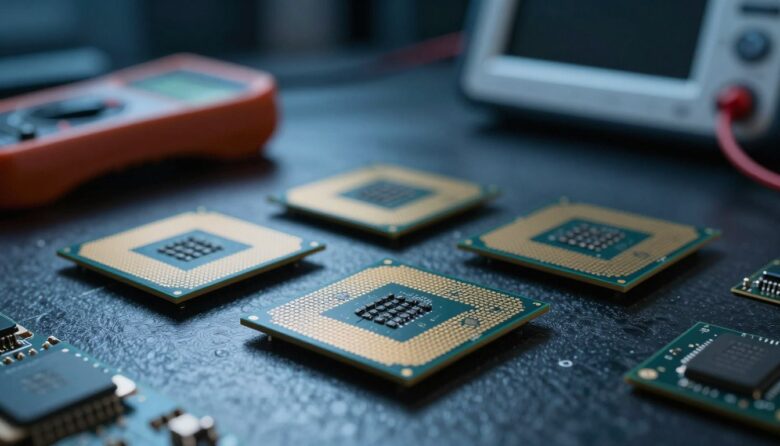
I treat the CPU as the brain of my computer. It handles everything from web browsing to video work. True processor failure is rare, but when things go wrong the whole system can act up.
I will walk you through common signs that point to a bad cpu and how to tell those from other system issues. Many faults trace back to RAM, storage, or power, not the processor itself. My goal is to help you diagnose hardware errors before you replace costly parts.
Why I always double-check before blaming the CPU
I’ve seen situations where a computer showed all the signs of a failing processor—freezes, random reboots, and even boot errors—but the real issue turned out to be something simpler. In one case, it was a faulty power supply causing unstable voltage, and in another, dried thermal paste led to overheating. These experiences taught me that CPU failure is actually less common than it seems, and jumping to that conclusion too early can lead to unnecessary expenses. My approach now is always to test step by step: check temperatures, verify power stability, and rule out RAM or storage before considering a replacement. A practical habit that saves both time and money is to isolate each component and test under controlled conditions, instead of guessing. This method has helped me avoid replacing good hardware and makes troubleshooting much more accurate and reliable in the long run.
I explain steps that work for a business workstation, a gaming PC, or a laptop. Heat, power, and stability must align for the cpu to run well. Follow this guide and avoid jumping to the conclusion of cpu failure.
Key Takeaways
- Check heat and power first: many problems mimic processor failure.
- Use structured tests: rule out RAM and storage before swapping parts.
- Monitor stability: logs and stress tests reveal real hardware issues.
- Adapt steps: apply the same checks to desktops and laptops.
- Save money: troubleshooting can prevent unnecessary replacements.
Understanding the Role of Your Processor
At the heart of my rig, the processor schedules tasks and turns code into action. It coordinates instructions from software and moves data between memory and other parts of the system.
The cpu is less flashy than a graphics card, but it sets overall performance. Modern cpus can run reliably for many years when kept cool and fed stable power.
Without a working processor, a computer is effectively useless even if other components are fine. Integrated graphics let you display an image, but they cannot replace processor logic.
| Role | What it affects | Typical lifespan |
|---|---|---|
| Instruction handling | App responsiveness, multitasking | 5–10 years |
| Coordination | Memory and I/O timing | 5–10 years |
| Computation | Rendering, compression, encryption | 5–10 years |
Tip: Learn how your processor works with RAM, storage, and the power supply. That understanding helps you keep the whole system stable and extend component life.
Common Symptoms of a Failing CPU
When core hardware acts up, your machine can freeze without warning. I always start by ruling out drives and memory before blaming the processor.
Unexpected System Freezes
Random freezes that happen during light use or idle time are worrying. If RAM and storage check out, these freezes often trace back to the cpu or motherboard traces.
Tip: Run a quick memory test and boot from a rescue USB. If the system still locks, the problem may be deeper.
Booting Failures and POST Errors
A failure to POST, repeated power cycling, or beep codes usually signals low-level hardware trouble. I check motherboard debug LEDs or the Q-Code readout first; those save time during diagnosis.
Note: POST failures can point to power delivery faults as well as processor damage, so inspect power connections and the BIOS settings.
Blue Screen and Crash Patterns
Frequent BSODs like WHEA_UNCORRECTABLE_ERROR (0x124) or CLOCK_WATCHDOG_TIMEOUT (0x101) are red flags. These errors often appear under stress—video edits, heavy rendering, or repeated benchmarks.
Overheating above the high 70s or 80s Celsius at idle, unexpected reboots, and repeat crash codes in Windows increase the chance that the processor is the culprit.
“Check logs and debug LEDs first—those clues often point straight to the failing part.”
- Rule out RAM and storage before swapping parts.
- Use stress tests to reproduce crashes.
- Record error codes and BIOS messages for targeted fixes.
Initial Hardware Checks and Troubleshooting
Start hardware checks by simplifying the build to the smallest working configuration. That lets me spot whether the issue stems from memory, power, or the cpu motherboard pair rather than an intermittent peripheral.
Minimum boot means one stick of RAM, the processor, and integrated graphics only. If the system posts and runs, add components back one at a time to find the failing part.
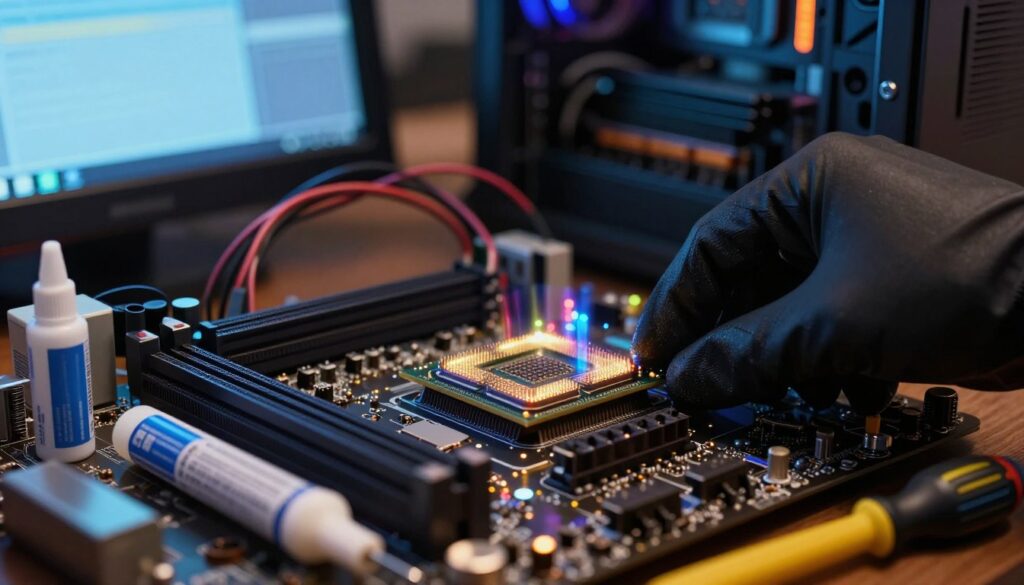
I always inspect the CPU socket for bent pins or debris and look for burn marks near VRMs. Physical damage is a quick indicator that the board or processor may have suffered permanent damage.
Quick checks I perform
- Confirm stable power delivery from the PSU and tight motherboard connectors.
- Reseat the cooler and apply fresh thermal paste to rule out cooling issues.
- Test with known-good RAM sticks to eliminate memory problems.
- Update the BIOS if compatibility errors or POST quirks appear.
“Back up your data before deep hardware work — crashes can happen during testing.”
Finally, I monitor temperatures in Windows with a tool like HWMonitor during a short load test. That confirms the cooling path and helps decide if further testing or part replacement is needed.
Performing a Professional Stress Test
A proper stress run forces the system to reveal hidden instability under load.
Tools I use: Prime95 in Blend mode to tax cores and RAM, and IntelBurnTest to push the processor to its limits.
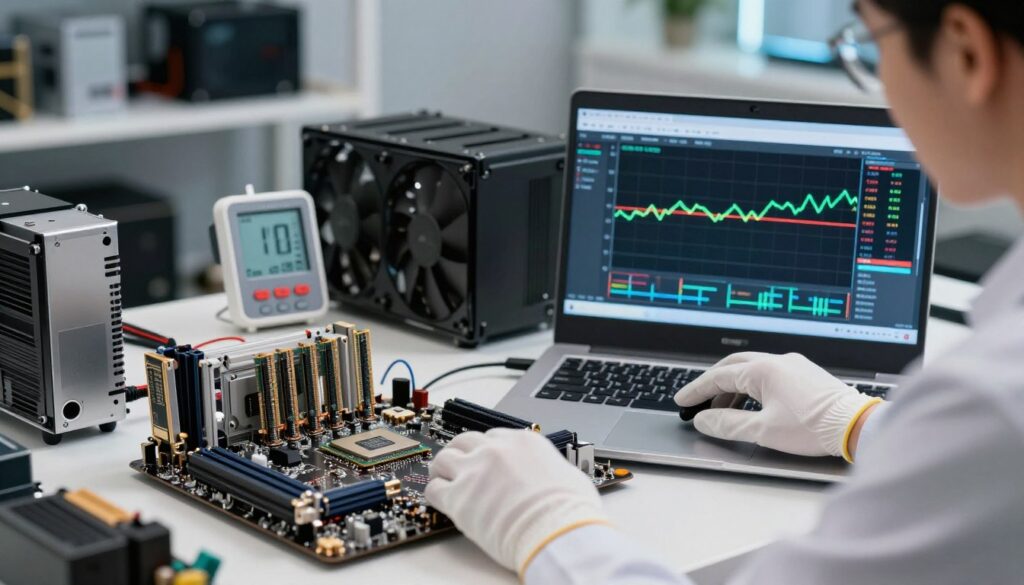
I watch temperatures with HWMonitor and keep them below 80°C to avoid thermal throttling.
Run each test for at least 30–60 minutes. If you see a blue screen or a crash, that points to real hardware instability.
- Prepare first: clean airflow in the case and fresh thermal paste on the cooler.
- Before testing: close background apps for the most accurate results.
- If the system shuts down: suspect PSU or motherboard VRM protection rather than only the cpu.
“A repeatable crash under load is one of the clearest signs that deeper hardware testing is needed.”
Analyzing Diagnostic Results for Hardware Errors
Diagnostic output can be cryptic; I focus on patterns rather than single events. Clear patterns in logs tell me whether the problem is local to a core or affects the whole system.
Pinpointing malfunctioning cores
Pinpointing malfunctioning cores
I check Prime95 logs first. Consistent errors on the same core are a strong sign that the core itself is damaged.
HWMonitor helps me confirm if that core shows odd clock speeds or higher temps. If errors line up with one core, replacement or RMA is likely.
Assessing severity of failures
Assessing severity of failures
Intermittent errors count as minor glitches. Repeated WHEA_UNCORRECTABLE_ERROR messages or frequent blue screen patterns mean major failure.
If multiple cores fail together, I suspect power delivery or motherboard VRMs rather than just the cpu. I always repeat stress tests to rule out transient software conflicts or thermal spikes.
“A repeatable core error under the same stress test is the most direct sign of real damage.”
| Result | Likely cause | Next step |
|---|---|---|
| Single-core consistent errors | Core damage | RMA or replace CPU |
| Multiple cores error | Power delivery or VRM fault | Check PSU and motherboard |
| Intermittent errors | Thermal or software conflict | Repeat tests; improve cooling |
| System-wide crash on stress test | Major hardware failure | Consider full replacement |
- Tip: Log errors, dates, and the test used to build a clear failure timeline.
- Tip: Use the severity assessment to decide on repair versus replacement.
Identifying Potential Causes of Processor Instability
When a system shows instability under load, my first checks target temperatures, power delivery, and firmware. I start simple and rule out easy fixes before swapping the chip.
Cooling and overheating top the list. Dust, failing fans, blocked vents, or poor thermal paste cause chronic temperature spikes that degrade performance and lead to crashes.
Power delivery is next. An aging or cheap supply can produce unstable rails that mimic cpu damage. Sudden reboots under load often point to the PSU or stressed motherboard VRMs.
Overclocking—especially auto settings—can wear silicon over time. BIOS and chipset driver mismatches also cause odd errors; keep firmware updated to maintain stability.
Physical faults matter too. Bent socket pins, bent contacts on boards, or loose power connectors create intermittent errors that resemble hardware failure.
Tip: For laptops, avoid soft surfaces that block vents. If problems persist, document voltage and temperature readings and test with a known-good power supply or cooler.
Best Practices for Preventing Future Hardware Damage
Regular upkeep stops small heat and power problems from turning into costly hardware damage. A few routine steps keep your cpu and system running smoothly and avoid long repairs.
Optimizing Cooling and Airflow
I clean case filters and heatsinks every few months. Dust blocks airflow and raises temperatures, which leads to overheating and damage.
Use quality thermal paste when reseating the cooler. Good paste improves heat transfer and helps maintain performance under stress.
If you use liquid cooling, check coolant levels and clear the radiator of dust. Also keep cables tidy to improve airflow and lower temperatures around the motherboard and ram.
Maintaining Stable Power Delivery
Stable power matters as much as cooling. I recommend a reputable PSU sized for your peak load so voltage stays steady during a stress test or heavy use.
Avoid aggressive overclocking without proper cooling and BIOS safeguards. Thermal cycling and unstable rails can cause long-term hardware damage and sudden failure.
Finally, keep BIOS and chipset drivers updated to reduce compatibility problems and system instability. That small step prevents many issues before they start.
“Preventive care — clean, monitor, and use quality parts — is the best defense against unexpected damage.”
Final Thoughts on System Longevity
Catch small hardware faults early, and you avoid bigger repairs later. Regular checks, basic cleaning, and simple testing keep my cpu running smoothly and protect data from sudden crashes.
I watch temps, tidy airflow, and run short stress checks after upgrades. That routine fixes most small problems before they become costly.
If the chip shows persistent errors or POST failures, upgrading on the same motherboard or asking a technician can save time and money.
Keep records, stay proactive, and your computer will deliver better performance for years. Reliable care beats emergency replacement every time.
FAQ
What are common signs my processor is near failure?
I notice repeated system freezes, frequent crashes or blue screens, and random reboots during light tasks. My PC may fail POST or show motherboard beep codes at startup. Performance drops in games or heavy apps, sudden slowdowns, and unexplained thermal spikes also point to processor or cooling problems.
How can I check if the CPU or another component causes the issue?
I start by isolating parts for a minimum boot: one stick of RAM, onboard graphics if available, and unplugging all drives and cards. If the system posts, I add components back one at a time. Swapping RAM, testing another power supply, or using a known-good CPU socketed board can help identify the culprit.
Which stress tests should I run to evaluate processor stability?
I use tools like Prime95, AIDA64, or IntelBurnTest to stress the CPU and monitor temperatures and errors. I run tests for several hours while watching for computational errors, thread crashes, or driver faults. If hardware monitoring shows thermal throttling or erratic voltage, I stop immediately.
How do I know if thermal paste or cooling caused the issue?
I check core temperatures in BIOS or with HWMonitor while idling and under load. High idle temps, rapid temp climbs, or hotspots suggest dried or missing thermal paste, poor cooler contact, or blocked airflow. Reapplying quality thermal paste and reseating the cooler often resolves overheating instability.
Could the power supply be responsible for crashes and errors?
Yes. I see unstable voltages, random shutdowns, and component failures when the PSU can’t deliver steady power. I test with a known-good PSU or use a multimeter to check rails. A weak or aging PSU often fails under load during stress tests.
What BIOS checks help diagnose processor problems?
I update the BIOS to the latest stable release, reset to defaults, and disable overclocks. I enable core-specific logging if available and run POST diagnostics. BIOS error codes, Q-LEDs, or beep sequences give direct clues about CPU or RAM faults.
How can I pinpoint a malfunctioning core or socket issue?
I use stress tools that report per-core errors and Windows Event Viewer or dumps for crash patterns. If errors consistently map to specific threads, the core or SMT logic may be damaged. Testing the CPU in another compatible motherboard confirms whether the socket or chip is at fault.
When should I replace the processor versus other parts?
I replace the CPU if diagnostic stress tests and cross-board testing reproduce the same errors, and I’ve ruled out PSU, RAM, cooling, and motherboard faults. If a different CPU works fine in the same board, the original chip likely needs replacement.
What preventive steps reduce future hardware damage?
I keep components cool with proper airflow and quality coolers, replace thermal paste every few years, and use a reliable power supply with enough wattage. I avoid aggressive overclocks, maintain clean dust-free cases, and use surge protection to protect the system.
Can software or drivers mimic processor failure?
Absolutely. I always check drivers, BIOS, and firmware before blaming hardware. Corrupt drivers, bad updates, or failing system files can cause crashes and BSODs. Running sfc /scannow, updating drivers, and testing with a clean OS install helps separate software from hardware issues.
How long should a CPU last under normal use?
I expect modern Intel or AMD processors to run reliably for many years—often 5–10 years—if kept cool and supplied with stable power. Lifespan shortens with heavy overclocking, poor cooling, or voltage stress.
Are there risks to running prolonged stress tests?
Yes. I monitor temps closely and stop tests if temperatures approach unsafe limits. Prolonged, unattended stress testing can risk thermal damage to the CPU, motherboard VRMs, or power supply if cooling or power delivery is marginal.
What immediate steps should I take if my PC shows post codes or won’t boot?
I power down, reseat the CPU cooler and RAM, clear CMOS, and try a minimum boot configuration. If POST fails, I consult motherboard error LEDs or beep codes, test with another PSU, and try a different RAM stick or slot to narrow the fault.
How do storage or RAM errors differ from processor faults?
I see storage issues as file corruption, slow I/O, or drive errors in SMART logs. RAM faults usually produce memory-related BSOD codes, repeated errors in memtest86, or failures at specific addresses. Processor faults often cause broader instability, per-core errors in stress tests, or POST failures tied to CPU initialization.

Adrian Wolfe is a hardware specialist focused on CPUs, system performance, and computing architecture. He provides detailed insights, benchmarks, and optimization tips to help users get the most out of their processors, whether for gaming, productivity, or high-performance workloads.