I often notice my gaming system stutters when the processor can’t keep up with my graphics card. That laggy frame pacing and low fps make intense games feel jerky and unfair.
My Intel Core i5-14500 has 6 hyperthreaded cores and 8 efficient cores, so I know raw core counts matter. Turning off hyperthreading cuts my available threads and can hurt performance in demanding titles.
What I realized after dealing with CPU bottlenecks in games
I remember thinking my graphics card was the problem because my games were stuttering, but after monitoring my system during gameplay, I noticed the GPU wasn’t even fully used. That’s when I understood that a bottleneck isn’t always obvious until you actually check real-time data. In my case, the processor was hitting high usage while the GPU stayed low, which explained the inconsistent performance. Since then, I always start by monitoring usage before changing any settings or upgrading hardware. My honest takeaway is that guessing wastes time—measuring gives clear answers. A simple habit that helped me a lot is running a quick test with a monitoring tool while playing for a few minutes and observing both CPU and GPU behavior. It’s an easy step, but it makes troubleshooting much more precise and avoids unnecessary upgrades.
Before I change resolution or reduce graphics settings, I watch RAM use and background software. Monitoring these elements helps me see if the cpu or the gpu is the real limit in my system.
Balancing hardware, software, and settings keeps frame rates steady and makes games feel smoother. In this guide I’ll show how I spot the issue and what steps I take to restore consistent performance.
Key Takeaways
- Check RAM and background software before changing resolution or graphics settings.
- Know your Intel Core processor’s core and thread layout to set expectations.
- Watch fps and frame pacing to identify whether the cpu or gpu limits performance.
- Disabling hyperthreading can reduce multi-threaded capability and hurt games.
- Balance hardware and software to keep a steady frame rate and smoother gameplay.
Understanding the Mechanics of a CPU Bottleneck
When my rig hiccups during heavy scenes, it usually means the processor can’t keep the data flowing to my graphics card. A cpu bottleneck occurs when one component’s throughput is lower than the work waiting to be processed.
In most modern games the CPU handles game logic, physics, and AI while the gpu renders frames. If the processor lags, the graphics card must wait for information, which hurts frame pacing and overall performance.
- A CPU bottleneck happens when processor speed can’t match the graphics card’s demand.
- Timing between CPU and GPU is key: both must finish tasks at similar rates for smooth gameplay.
- Mismatched components cause the gpu to idle, creating stuttering during intense scenes.
Understanding this cpu gpu relationship helps me spot and avoid bottlenecking gpu effects. Good balance between processor, card, and memory keeps games running at the speed I expect.
How to Identify if Your System is Bottlenecked
A quick way to spot trouble is to watch real-time load numbers while I play a demanding title. I rely on reliable monitoring to separate processor limits from graphics issues before I change settings.
Monitoring Tools for Accurate Diagnosis
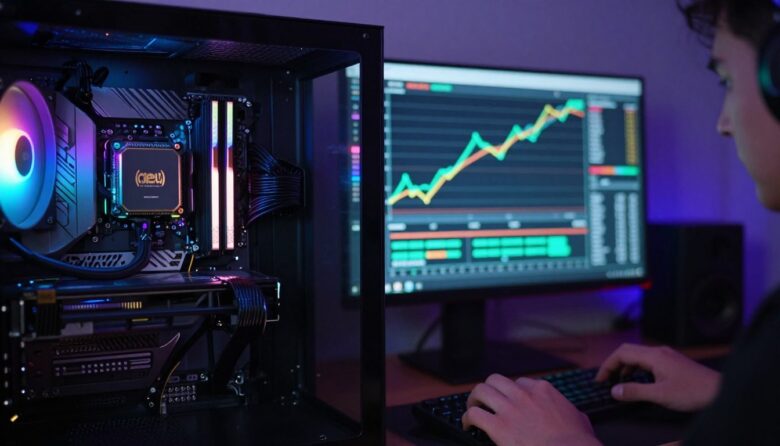
I use MSI Afterburner as my go-to tool. It shows live CPU and GPU usage percentages while I run games, so I can see which component is under high load.
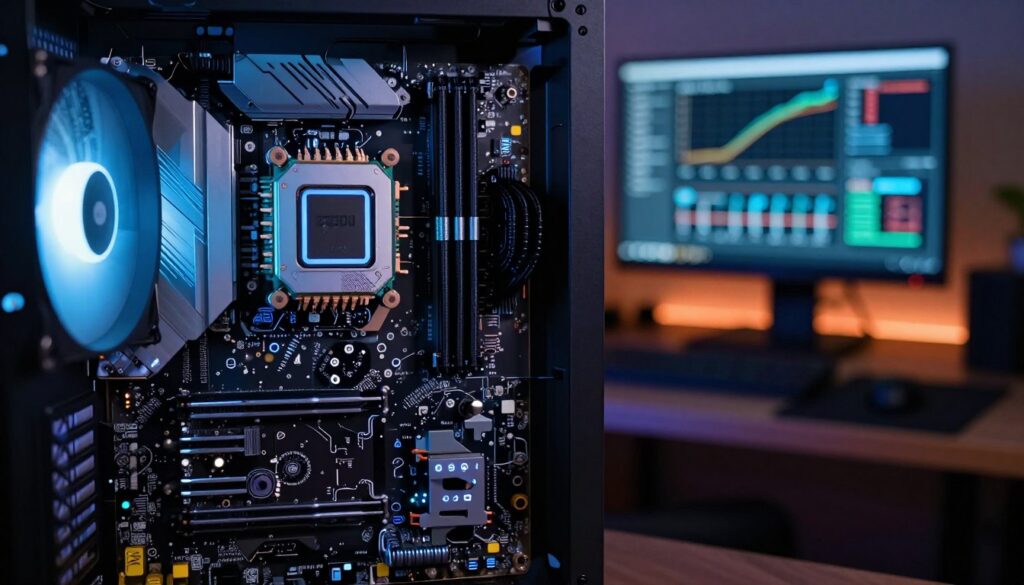
The GPU Check comparison also helps. Its “CPU Impact on FPS” metric should be 10% or lower for a balanced system. That gives me a clear target to aim for.
Interpreting CPU and GPU Usage Data
When I see about 80% cpu usage but only 30% gpu usage, I know the processor is causing a bottleneck in that game. The graphics card is idle waiting for more information to render the next frame.
I watch fps swings, core load, and GPU usage together. If the gpu usage stays low during heavy scenes, the system is likely bottlenecking gpu performance rather than graphics performance.
- Tip: Record a session if values spike only at certain times in a title.
- Tip: Compare runs with different maps or settings to confirm consistent patterns.
Using these tools and reading the usage data stops me from guessing. Accurate monitoring gives the information I need before I make changes to hardware or settings.
Simple Software Adjustments to Fix CPU Bottleneck
I can often restore smooth play by trimming background tasks before changing any in-game options. Small software moves free processing time and improve overall performance fast.
Closing Background Applications
I open Task Manager and look for resource-heavy apps like Chrome. Ending a few tabs or background services can drop my cpu usage from 70% to normal gaming levels.
That clears RAM and lowers system load so the game gets more processor time. I monitor usage while I play to confirm the change.
Optimizing In-Game Graphics Settings
I lower CPU-bound options such as population density, draw distance, and shadow quality. These settings cut the processor workload and balance work between the cpu and the gpu.
Capping my frame rate also helps the processor keep pace with the graphics card and reduces stuttering during intense scenes.
Adjusting Display Resolution
On my HP OMEN 16-wf1096TX I match the game resolution to the laptop’s FHD panel. Moving work to the GPU by using native resolution often eases processor pressure.
- Quick tip: Monitor gpu usage after changes to see if the system now leans more on the graphics card.
- Quick tip: Use lightweight monitoring tools to confirm lower cpu load and steadier fps.
Advanced Hardware and Performance Tweaks
Pushing my rig beyond stock speeds is where I get noticeable performance headroom for demanding games. Careful hardware tuning can raise frame rates and smooth out uneven frame pacing when software changes no longer help.
Overclocking Your Processor and RAM
I start by raising the processor multiplier in small steps and testing. I watch temperatures closely with Core Temp and stop if readings approach 80°C.
Next I tighten RAM timings or raise frequency to reduce memory latency. Faster RAM often lowers CPU workload and shifts more work to the gpu, which improves overall performance.
I use Task Manager to monitor background usage while stress testing. That helps me spot thermal or stability problems fast.
- Tip: Keep voltages conservative and test for stability with a blend workload.
- Tip: Modern laptops like the HP OMEN Transcend 14-fb0007TX pair Intel Core Ultra with NVIDIA GeForce RTX to reduce cpu bottlenecking gpu issues.
- Tip: On a budget, the HP Victus 15-fa1278TX balances an Intel Core i5 and RTX 4050 for solid performance.
Why Balanced Components Matter for Gaming
A well-matched build keeps every frame smooth by preventing one part from doing all the work.
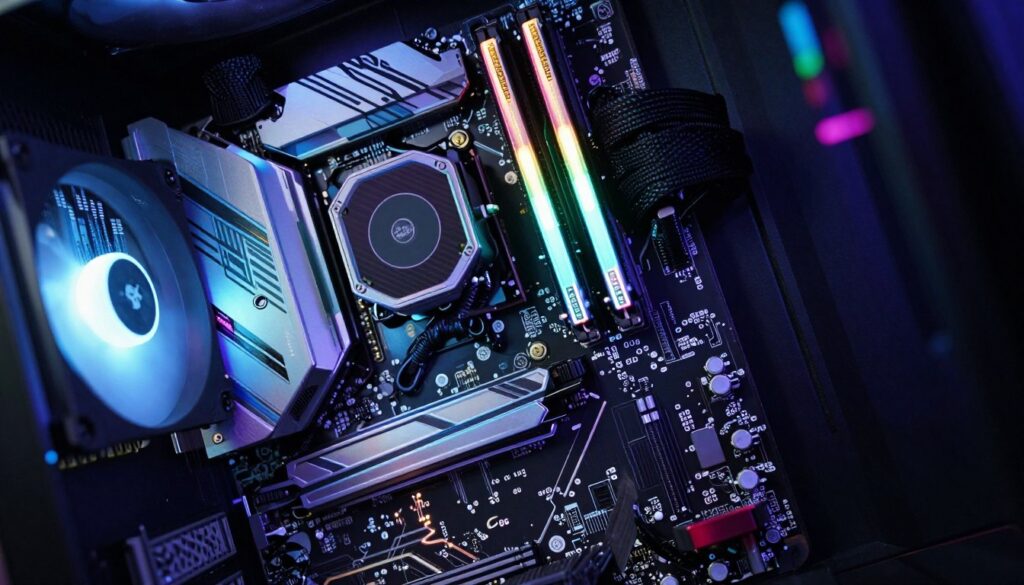
I prioritize pairing my Intel Core processor with a capable graphics card, like an NVIDIA GeForce RTX, so the system handles modern titles without dropping fps or stalling.
Matching the processor and card to the target resolution and frame rate is key. Higher resolutions shift work to the GPU, while very high fps needs a faster processor and more responsive RAM.
I use Task Manager to watch system load and background usage during play. If the cpu usage stays high while the gpu sits idle, the rig needs better balance, not just higher settings.
- Pick parts with similar performance tiers for steady frame delivery.
- Consider settings and target fps when choosing a card and processor.
- Monitor load in real time to confirm the build meets your needs.
When my components work together, I spend less time troubleshooting and more time enjoying the graphics and speed that make each game a better experience.
Conclusion
I wrap up my tuning by verifying that each component shares the load during intense scenes.
Starting with simple steps helped me fix CPU bottleneck issues faster than a costly swap. I watch live usage to spot whether my cpu or gpu carries too much work.
I balance processor, card, and graphics settings to raise fps and steady frame delivery. Closing background apps and tweaking resolution often eases the strain.
Addressing cpu bottlenecking is manageable and improves my game experience. With monitoring and small changes, I feel confident in keeping my system running smooth.
FAQ
How do I tell if my processor is limiting game performance?
I look at live usage numbers in Task Manager or MSI Afterburner while running a game. If the processor is near 100% while the graphics card sits well below its limit, the processor is likely the limiter. I also watch frame rates and stutters: high GPU temps with low GPU load plus low, inconsistent FPS is a telltale sign. Check core utilization, background processes, and single-thread usage for a clearer picture.
Which tools do I use to monitor load and temperatures?
I rely on Task Manager for quick checks, and I use MSI Afterburner, HWMonitor, or HWiNFO for detailed telemetry. GeForce Experience and Radeon Software give GPU-specific stats for NVIDIA and AMD cards. These tools show utilization, clock speeds, thermals, and frame timing so I can correlate processor, graphics card, and RAM activity to pinpoint the limiting component.
Can software changes improve my system’s performance without swapping hardware?
Yes. I start by closing background apps, disabling unnecessary startup programs, and updating drivers for the Intel Core or AMD processor and the graphics card. Lowering CPU-heavy in-game settings like draw distance, shadows, and crowd density can help. Also, switching to a lower display resolution or enabling frame rate caps often eases processor load and smooths gameplay.
How does resolution affect workload between processor and graphics card?
I’ve found that increasing resolution shifts work to the graphics card, often reducing processor strain. At 4K, the GPU usually becomes the limiting factor. At 1080p, the processor has to handle more draw calls and game logic, so it’s more likely to become the limiting device. Adjust resolution and settings to move the balance toward the component you want to stress less.
Will overclocking the processor or RAM help frame rates?
Overclocking can raise single-thread and overall processing performance, improving frame rates in CPU-bound titles. I only overclock if I can monitor temps and voltages, and I stress-test for stability. Faster RAM often improves minimum FPS and reduces stutters in CPU-sensitive games. Proceed carefully and follow vendor guides for safe tuning.
When should I upgrade components instead of tweaking settings?
If I consistently see high processor utilization across many modern titles and even lightweight system tweaks don’t help, it’s time to consider a new processor or a more balanced motherboard/CPU/RAM pairing. If the GPU is underused but the CPU can’t keep up, upgrading the processor or adding cores and higher IPC will give the best return in performance-heavy games.
How do I avoid creating new performance problems when I change settings?
I make one change at a time and record performance before and after, so I know what helped. I keep drivers up to date, monitor temperatures, and avoid maxing power limits that cause thermal throttling. If I overclock, I test stability with Prime95 or AIDA64 and test gaming sessions to confirm real-world gains without crashes.
What role does RAM play in game smoothness and frame pacing?
RAM affects how quickly the system can feed data to the processor and GPU. I ensure I have enough capacity and that it runs at the motherboard-recommended frequency and timings. Dual-channel configurations and faster memory can reduce CPU load and improve minimum FPS and frame pacing in many titles.
Are there game genres that stress the processor more than the graphics card?
Yes. Strategy, large-scale simulation, and massive multiplayer games often push the processor harder because they rely on AI, physics, and many draw calls. First-person shooters and graphically intense AAA titles usually hit the graphics card harder. I choose component upgrades or settings adjustments based on the types of games I play most.
How can I use Task Manager and GPU monitoring together for diagnosis?
I run Task Manager alongside a GPU overlay like MSI Afterburner or NVIDIA’s performance overlay. I compare CPU and GPU usage, clock speeds, and memory use in real time. If the processor is pegged and the GPU shows low usage, I focus on reducing CPU work or upgrading the processor. If the GPU is maxed, I lower graphical detail or consider a stronger graphics card.

Adrian Wolfe is a hardware specialist focused on CPUs, system performance, and computing architecture. He provides detailed insights, benchmarks, and optimization tips to help users get the most out of their processors, whether for gaming, productivity, or high-performance workloads.