I’ve found that learning this method protects my hardware and keeps gaming smooth. Reducing voltage cuts heat and often improves system performance without sacrificing the speed I rely on.
I treat undervolting as a safe, practical step that manages power and extends the life of my cpu. I use trusted software like ThrottleStop for Intel or Ryzen Master for AMD, and I watch temperatures and settings closely during each trial.
Why undervolting became my go-to for everyday stability
At one point, I was constantly trying to improve performance by increasing clock speeds, but I noticed that my system was running hotter and louder than I liked, especially during long gaming sessions. That’s when I decided to try undervolting, and the difference was clearer than I expected. By slightly reducing the voltage, I managed to lower temperatures without losing noticeable performance, which made the whole system feel more stable over time. What surprised me most was how consistent everything became, especially under heavy load. Since then, I’ve treated undervolting as a practical adjustment rather than an advanced tweak. My honest advice is to start with very small voltage reductions and test each change carefully, instead of trying to push limits too quickly. This approach helped me keep my hardware cooler, quieter, and more reliable without taking unnecessary risks.
This guide walks me through each step so I can tweak voltage, monitor stability, and keep peak performance while lowering power draw and thermal stress.
Key Takeaways
- Undervolting can lower temperatures and reduce wear without losing gaming FPS.
- Use reputable software and real-time monitoring for safe adjustments.
- Small voltage drops often deliver big gains in thermal control and power use.
- Test stability and note settings so you can revert if needed.
- Undervolting is a cool, efficient alternative to aggressive overclocking.
Understanding the Benefits of CPU Undervolting
Small voltage cuts yielded big improvements in power use and thermal headroom on my system. I saw lower temperatures and steadier clock speed without losing frame rates during long gaming sessions.
Modern chips like the Intel 13900K and 14900K respond well to careful tuning. By trimming voltage I protect sensitive components and reduce power consumption. That extends the life of my parts and keeps the system quieter.
Unlike overclocking, which chases raw speed, undervolting focuses on efficiency. I keep peak performance while lowering heat that can stress the gpu and motherboard.
I always research my exact model and test settings over time. Small, repeated checks let me find the sweet spot where performance stays stable and temperatures drop.
| Processor | Typical Effect | Why it helps |
|---|---|---|
| Intel 13900K | Lower temps, reduced power | Factory voltages are conservative; trimming improves thermal headroom |
| Intel 14900K | Better stability under load | Reduces throttling and keeps clock behavior steady |
| High-end chips | Quieter operation | Less fan noise and cooler components during long runs |
Essential Preparation and Baseline Testing
My first step is establishing a firm starting point with benchmark and monitoring data.
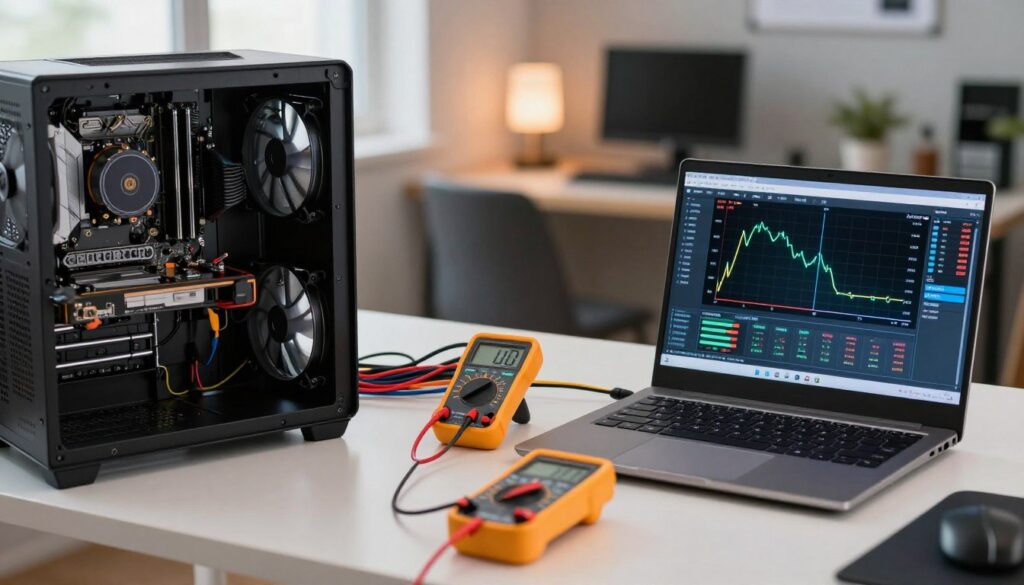
I make sure monitoring is running before any change. I use HWMonitor because it shows cpu temperature, voltage, and utilization for each core.
Next, I run a CPU-Z benchmark as my starting point. That gives me performance and clock numbers I can compare later.
Monitoring Tools
HWMonitor records temps and voltages across all cores. I keep it open while I note idle and load readings.
Stress Testing Procedures
I perform a stress test to push power and temperature limits. This step reveals the real thermal headroom and shows if stability holds.
For example, I log the average cpu temperature during a demanding run. I save the results and the current settings so I can compare later.
- Baseline: CPU‑Z benchmark scores and idle temps.
- Monitor: HWMonitor for voltages and per‑core data.
- Stress test: Record peak temps and stability under sustained load.
| Item | Purpose | Example Result |
|---|---|---|
| CPU‑Z benchmark | Starting point for performance | Single‑thread score: 600; Multi: 4800 |
| HWMonitor | Track cpu temperature and voltage live | Idle 35°C, Load 85°C, Vcore 1.25V |
| Stress test | Validate stability under power draw | 90 minutes stable, no errors, average temp 82°C |
How to Undervolt CPU Settings via BIOS
The BIOS gives me a clean interface for trimming voltages and learning my system’s limits.
I enter firmware setup by pressing keys like F2, Del, F10, F12, Esc, or Alt during boot. That opens menus where core voltage or Vcore is listed.
I lower voltage in small increments, usually 0.05–0.1 volt. This step approach helps me keep performance steady while reducing power and temperatures.
I always make sure to test stability after each change. If I change a value from 1.224V to 1.216V, I run a heavy load and observe for crashes or errors.
- Tip: Save settings and reboot between adjustments.
- Reset BIOS if the system fails to boot; this makes experimenting safer.
- Record each setting so you can compare temperatures and performance later.
This manual route gives direct control over cpu voltage and offset voltage. It teaches me about my hardware and prevents wasting power on unnecessary heat.
Using Throttlestop for Intel Processors
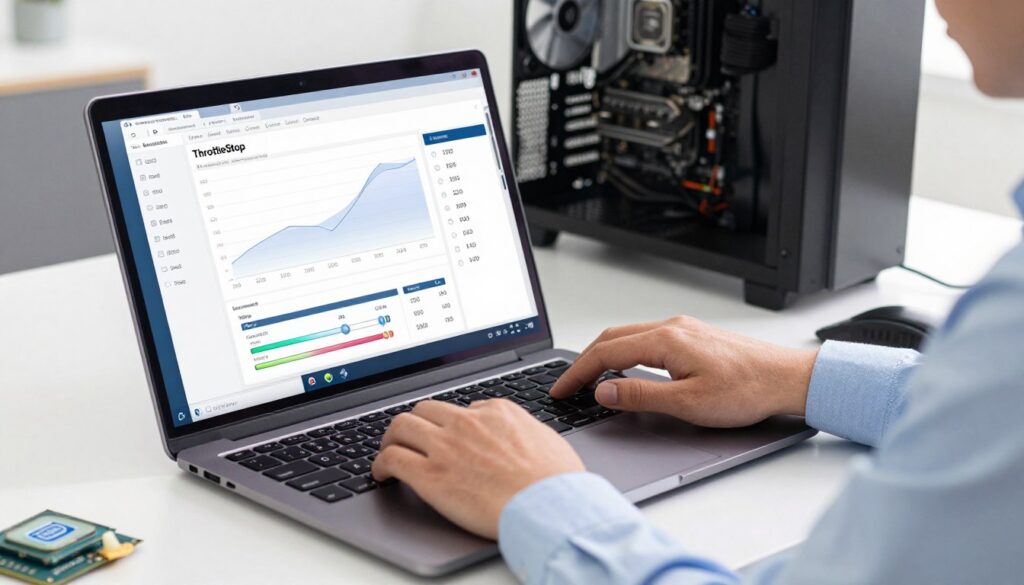
Throttlestop gives me fine-grained control that keeps my Intel rig cool without sacrificing responsiveness. This TechPowerUp tool puts important controls in one place so I can make measured changes and watch results in real time.
Configuring Speed Shift
I enable Speed Shift in the main Throttlestop window to let the processor adjust clock speed faster. That reduces wasted time at high clocks and often lowers temperatures during brief peaks.
Speed Shift helps balance responsiveness and power use, which improves workload transitions on modern Intel chips.
Adjusting Offset Voltage
From FIVR I pick CPU Core and set an offset voltage. I start with a safe value like -50mV and move in small increments.
Matching CPU Core and CPU Cache offsets gives consistent behavior across all cores and steady clock behavior under load. After each change I run a CPU‑Z benchmark and a short stress test to check stability and cpu temperature.
Managing Profiles
I create separate profiles for AC and battery power. That lets me preserve performance on mains power while cutting power consumption and heat on battery.
- Save profiles in Throttlestop so settings load on startup.
- Keep notes of each value and test result for comparison over time.
- If a setting causes instability, revert to the previous saved profile and retest.
Adjusting Voltage with AMD Ryzen Master
Ryzen Master gives me a clear, low-risk path for trimming voltages on my AMD rig. I start in Basic View so settings are visible and easy to change. That simple layout helps me make measured adjustments in small increments.
Make sure your processor supports Ryzen Master before you begin; models older than the Ryzen 2000 series often lack full compatibility. Ryzen 5000 series chips use a different architecture, so my tuning steps can vary from Intel workflows.
I lower cpu voltage in small steps and run a CPU‑Z benchmark after each change. This gives a starting point and shows the real effects on clock speed and performance. After a new value, I run a short stress test and watch cpu temperature and power consumption closely.
“Small, controlled changes yield the best results—stability first, then efficiency.”
I also test RAM profiles inside Ryzen Master and compare results. If a setting causes instability, I revert and try a smaller step. That method keeps my system cool and stable under heavy loads while preserving speed and results.
Conclusion
I found that tuning voltage in small steps helped me keep performance high while cutting heat and power draw.
By following each step I can make sure my cpu runs cooler and lasts longer without losing the responsiveness I need. I saved my settings and tested stability over time.
Undervolt cpu and undervolting are powerful tools. They let me take control of power use and reduce unnecessary temperatures during long sessions.
Overall, this process gave me a better computing experience. If anything goes wrong, I revert settings and retest until I find a stable balance between temperature, power, and performance.
FAQ
What benefits can I expect from undervolting my processor?
I usually see lower temperatures, reduced power draw, and quieter fans after lowering core voltage. That often preserves frame rates while cutting heat, which helps thermal throttling less. Results vary by hardware and workload, so testing matters.
How do I prepare before changing voltage settings?
I create a baseline by recording clock speed, core temperatures, and power use with tools like CPU-Z, HWInfo, and a built-in benchmark. I back up important work, update drivers and BIOS or firmware, and note stock settings so I can revert if needed.
Which monitoring tools do you recommend?
I rely on HWInfo for real-time sensor readouts, CPU-Z for clock checks, and HWiNFO or Ryzen Master for platform-specific telemetry. For stress and stability I use Prime95, AIDA64, or Cinebench and watch temps closely.
What stress testing procedure should I run after changing voltages?
I lower voltage in small steps, then run a 15–30 minute CPU stress test and a 30-minute real-world benchmark or game session. If stable, I extend tests to an hour. If errors or crashes appear, I revert the last change or raise voltage slightly.
Can I change voltages from the motherboard firmware instead of software?
I can, and firmware offers direct control of core voltage, offsets, and power limits. Enter BIOS/UEFI, find CPU core or Vcore settings, apply a negative offset or manual value, then save and boot. Always use small increments and test stability after each change.
How does ThrottleStop help on Intel systems?
I use ThrottleStop to tweak Speed Shift, apply offset voltage, and set power limits. It runs in Windows, offers quick profile switching, and shows real-time changes. I keep a safe rollback plan in case a setting causes instability.
What is Speed Shift and why adjust it?
Speed Shift lets the processor choose performance states faster, improving responsiveness and efficiency. I tune it in ThrottleStop by enabling or changing the EPP value; lower EPP increases performance, higher EPP favors power savings.
How do I apply an offset voltage safely?
I start with a conservative negative offset, like -0.050V, and test. If stable, I reduce by another -0.010 to -0.020V steps. I never jump large amounts, and I monitor crashes, errors, and temperature to confirm stability before proceeding.
Should I use profiles for different tasks?
Yes. I keep at least two profiles: one for maximum performance with stock voltages and one for power-saving with reduced voltage. ThrottleStop and Ryzen Master both let me switch quickly so games and heavy workloads get proper settings.
How does AMD Ryzen Master differ from BIOS tuning?
Ryzen Master runs inside Windows and provides per-core and per-CCX control plus voltage offsets and precision boost overrides. It’s user-friendly for testing changes without repeated reboots, but I still confirm final settings in BIOS if I need persistent changes.
What compatibility checks should I run for Ryzen Master?
I verify my AMD chipset drivers, check that my processor model supports Ryzen Master, and ensure BIOS versions match AMD recommendations. Some vendor-specific power features may conflict, so I read motherboard notes before making major changes.
Will lowering voltage impact single-core or multi-core speed?
I typically don’t see clock speed drops if the CPU remains stable; however, pushing voltage too low can cause crashes, errors, or reduced boost clocks. I confirm clocks and benchmark scores after each tweak to ensure performance holds.
How much can I expect temperatures and power consumption to drop?
On modern chips, I often see temperature drops of 5–15°C and noticeable power savings under load, but results depend on cooling, silicon quality, and workload. Some chips respond better than others, so measure your own system.
What are common signs of instability after changing voltage?
I watch for blue screens, application crashes, computation errors in stress tests, or sudden reboots. If any appear, I revert the last change or increase voltage slightly until stability returns.
Can undervolting void my warranty or harm components?
I haven’t seen manufacturers void warranties for conservative voltage reductions, but extreme manual settings can risk instability. Using recommended tools like Ryzen Master or ThrottleStop and staying within vendor guidance keeps risk low.
Should I also tweak GPU settings when reducing CPU voltage?
I sometimes adjust GPU undervolt or power limits separately. Lowering CPU voltage reduces overall system heat, which can indirectly help GPU thermals. For direct GPU tuning, I use vendor tools like MSI Afterburner or AMD Radeon Software.
What’s a safe starting point for most laptops and desktops?
I start with a modest negative offset such as -0.050V and test. For many Intel chips, -0.050 to -0.100V is safe; for Ryzen, per-core offsets or a -0.025 to -0.075V range often works. Always test and back up your settings.
How long should I test each voltage step?
I run an initial 15–30 minute stress test, followed by a longer one-hour session if it passes. For full confidence, I run extended overnight stability checks and real-world gaming or rendering tests the next day.
What final checks do you perform before keeping new settings?
I verify benchmark scores, watch clock speeds under load, confirm no errors appear in stress logs, and monitor temperatures and fan behavior for several hours across different tasks. If everything stays steady, I keep the setting.

Adrian Wolfe is a hardware specialist focused on CPUs, system performance, and computing architecture. He provides detailed insights, benchmarks, and optimization tips to help users get the most out of their processors, whether for gaming, productivity, or high-performance workloads.